.png?width=400&height=77&name=Atlas-Metrics-Logo-Primary%20(1).png)
How is my data structured?
Within Atlas, data is structured on three different levels:
- GP level data
- Fund level data
- Portfolio company data
You can view and edit all data in both the Tasks and All metrics section of the menu bar.
GP Level Data
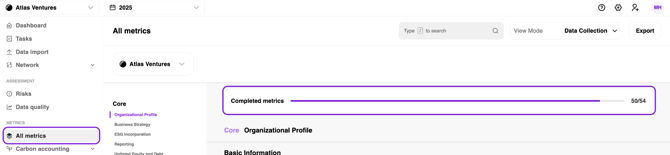
You can check whether all your data has been submitted by navigating to the All metrics tab. By default, this view is on GP level. The progress bar at the top indicates, how many GP metrics have been submitted and how many still need to be completed.
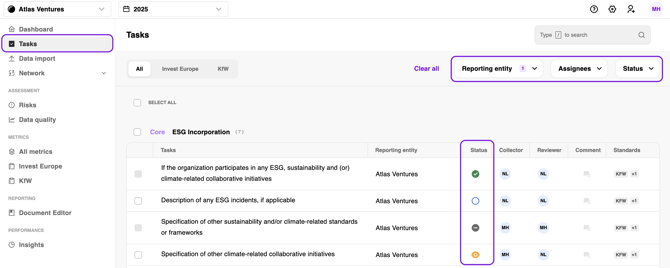
On the right hand side of each metric you will find a circle indicating the status of that metric:
- Green = metric is submitted, no further to-do
- Grey = metric is omitted, no further to-do
- White/empty = metric is not submitted, you will need to enter data and/or submit the metric
- Orange = metric is in review, the reviewer needs to approve the data entered into the metric for it to be submitted
To easily get an overview of metrics that are open or in review, navigate back to the Tasks tab and apply the relevant filters for the reporting entity and status.
Fund Level Data
You can view fund level data by repeating the steps taken for GP level data and adjusting the filters.
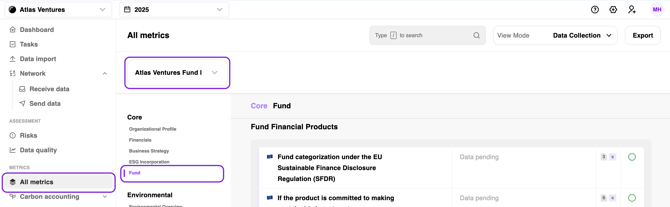
You can check whether all your data has been submitted by navigating to the All metrics tab. By default, this view is on GP level. To adjust, select the relevant fund in the drop down on the left hand side and scroll to the category Fund under Core.
Alternatively, you can also view your fund related metrics via the Tasks section. Filter the reporting entity to the respective fund(s). Any metric that does not have Network as the data collector is a fund metric. The one with Network as the collector are portfolio company metrics.
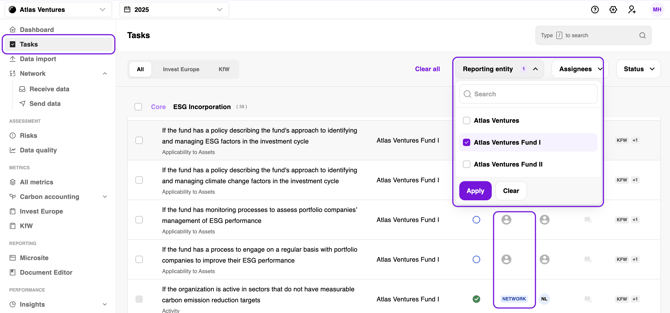
On the right hand side of each metric you will find a circle indicating the status of that metric:
- Green = metric is submitted, no further to-do
- Grey = metric is omitted, no further to-do
- White/empty = metric is not submitted, you will need to enter data and/or submit the metric
- Orange = metric is in review, the reviewer needs to approve the data entered into the metric for it to be submitted
To easily get an overview of metrics that are open or in review, navigate back to the Tasks tab and apply the relevant filters for the reporting entity and status.
Portfolio Company Level Data
Portfolio company data will appear through one of two ways on the platform: Either your portfolio companies entered and shared data directly via the Atlas platform or you uploaded it on their behalf.
- Your portfolio companies entered the data directly onto the platform
- If you would like to review the status of each portfolio company, you can do so by navigating to Network > Receive data and selecting the relevant fund. The Requested metrics section indicates hoe many metrics how been completed by your portfolio companies and how many they have shared with you. In case your portfolio companies have not shared (all) their data with you, you can send a reminder directly through Actions column.
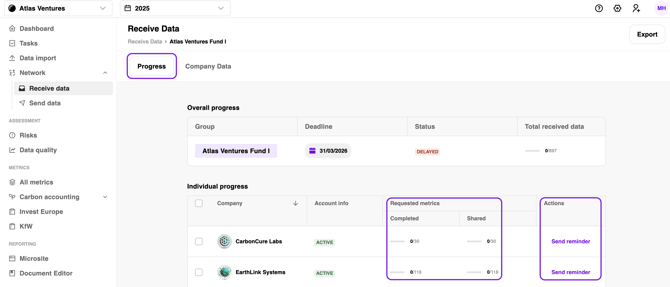 By clicking on Company data you are able to review the individual data points shared with per portfolio company.
 - If you would like to have an overview over the data entered by by the different companies into each metric, you can do this via the Tasks or All metrics section.
Navigate to Tasks, Filter by the fund for which you would like to view the data and filter Assignee to Network. You can now click on any metric to view all portfolio company data per metric.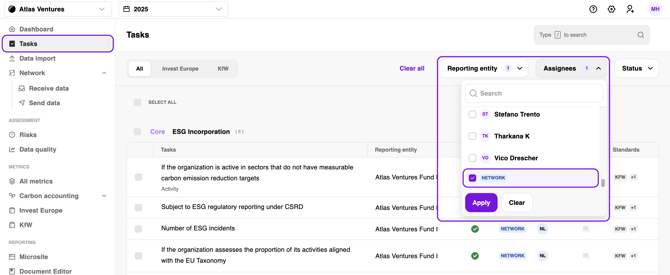
- If you would like to review the status of each portfolio company, you can do so by navigating to Network > Receive data and selecting the relevant fund. The Requested metrics section indicates hoe many metrics how been completed by your portfolio companies and how many they have shared with you. In case your portfolio companies have not shared (all) their data with you, you can send a reminder directly through Actions column.
- You entered data on behalf of your portfolio companies, either manually or via the MRF import feature. For details on how the MRF import works, check out this article.
Navigate to Tasks, Filter by the fund for which you would like to view the data and filter Assignee to Network. You can now click on any metric to view all portfolio company data per metric. Keep in mind that the values you entered for your portfolio companies will appear in Directly provide data on behalf of [your portfolio company].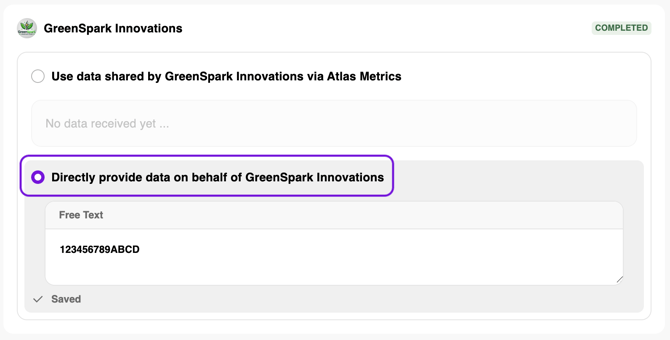 Any data provided on behalf of portfolio companies (whether manually or the MRF import feature) is stored directly within your account. The completed and shared progress bars in the Network page, as well as the Dashboard only refer to the data stored inside the portfolio company accounts. Therefore, the progress bars will not be affected by any data uploaded on behalf of your portfolio companies.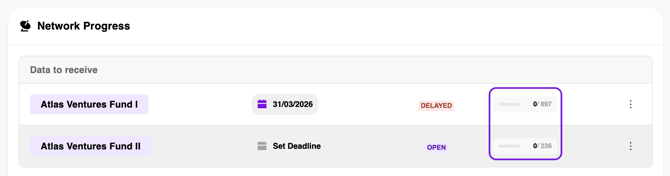
Important: It is essential that after reviewing you submit all metrics, as they otherwise will not be shared with your LP. You can do this either manually via hitting Submit in each metric or via the bulk submit feature. For details on how to bulk submit your metrics, check our this FAQ article or this video tutorial.
How do I share the data with my LP?
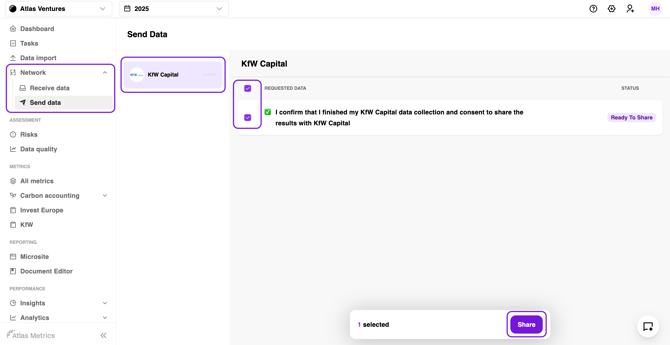
Once you have submitted all your metrics, you may still need to share them with your LP(s) via the Atlas platform. To do this, navigate to Network > Send data and select the LP you want to share the data with. Hit the checkmark at the top to automatically select all metrics that are ready to be shared and select Share.