![Novata_Logo_01_primary-2.png]](https://knowledge.novata.com/hs-fs/hubfs/Novata_Logo_01_primary-2.png?height=50&name=Novata_Logo_01_primary-2.png)
The Novata Proxy Estimator generates ESG metric values for portfolio companies when reported data is unavailable. Proxy estimates are derived from peer-reported benchmarks on the Novata platform and are always superseded by company-reported data. Proxy estimates are not substitutes for investee-reported data, but support reporting completeness when companies are unable to provide certain datapoints. Users should disclose proxy use in reporting and prioritize collecting primary data from portfolio companies over time.
Steps to Review, Apply, and Sync Proxy Data in the Data Workspace
1. Open the Data Workspace and Sync Reports
- Navigate to Data Management→Data Workspace.
- *Note: If you do not use Novata for Data Collection and are generating proxies for companies from-scratch, skip to Step #2.
- Click Prepare to Sync to ensure all submitted reports and data are synced in your Data Workspace.
- Once you’ve selected the reports to sync, you can close the window while it syncs. Allow time for the background queue to complete, especially if there are many metrics.
- Wait until the status shows that all reports are synchronized and Up to date.
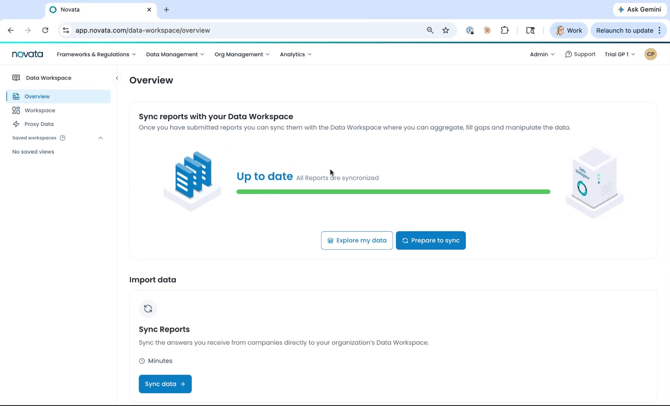
2. Open Proxy Data and review the available proxies
- Once syncing is complete, open Proxy Data from the left menu.
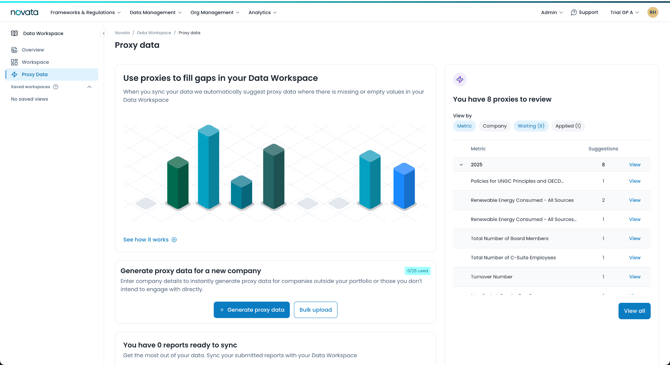
- *If you do not use Novata for Data Collection and are generating proxies for companies from-scratch, click ‘+Generate proxy data’ to enter in company details and desired metrics manually, or select ‘Bulk upload’ to download a template to add multiple companies at once. Once entered, you may proceed below.
- On the righthand side of the page, you’ll see a preview of the proxies available for review. Use the available views to organize the queue:
- By metric to review all proxy items for a specific metric.
- By company to review all proxy items for a specific company.
- Click View all to review all proxy values awaiting for review versus those already applied.
- Use filters to narrow the list by:
- Company
- Awaiting response
- Applied status
3. Open an individual proxy item for detailed review
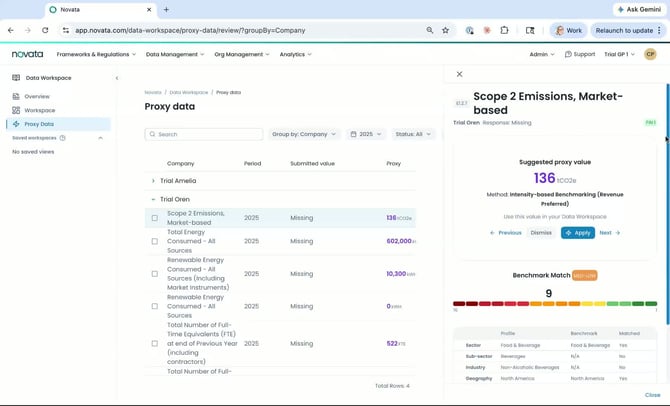
- Click a Waiting item to open the side panel.
- Review the key details in the side panel to evaluate the proxy:
- Missing Response that triggered proxy generation
- Which PAI this metric relates to, if any
- Proxy generation Method (Review all four of our Proxy Methodologies in this Knowledge Base article)
- Match Quality and matched Attributes, such as sector-level, FTE-level, etc.
- Calculation value used to generate the proxy
- Use this information to decide whether the proxy is appropriate for the company’s data.
4. Apply an approved proxy value
- After reviewing the proxy and confirming it is acceptable, click Apply.
- The proxy value will be added to the Data Workspace.
- Repeat this process for each proxy item that requires individual review.
5. Use bulk approval when many items are ready to apply
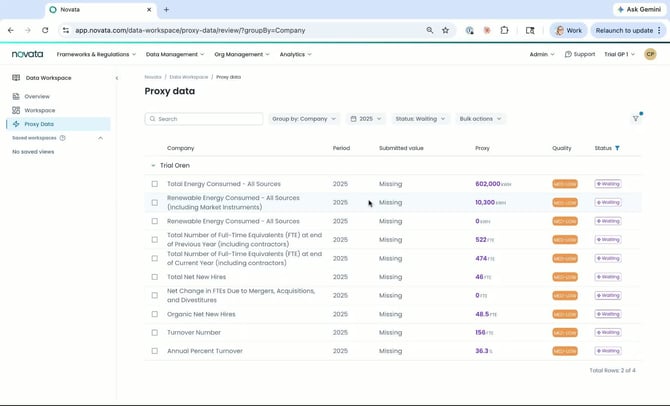
- If multiple proxy items are ready and you are satisfied with the recommendations, you may select them in bulk.
- Please note that some proxy methods may be broad or universal and may not align closely with a specific sector or subsector. Do not apply proxy values without reviewing the match quality and calculation details first.
- Select Approve and Apply to process multiple items at once.
6. Confirm applied values and review the final applied list
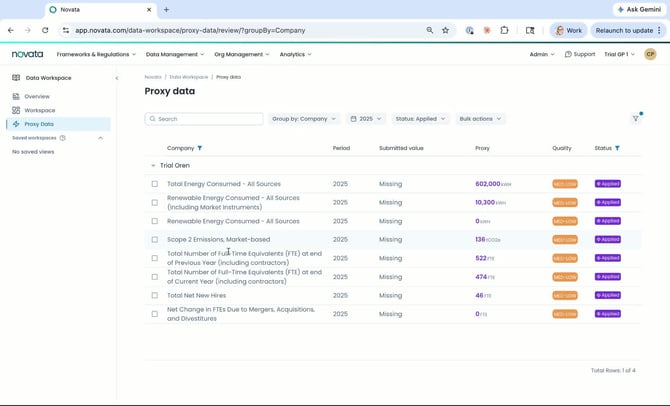
- Filter to Status:Applied while keeping any relevant filters in place to review all applied values.
- Verify that the proxy values were applied to the correct company and metric.
- Open an applied item to confirm the details of the exact value that was saved.
7. You're ready to go!
- Navigate back to the Data Workspace to see the updated values.
- These values now sync with the rest of your Novata Platform—SFDR PAI statement generator, Analytics and Dashboards, etc.
Watch our accompanying how-to video here.